The SEO Tab in Divi Theme Options is one of the most misunderstood parts of the entire Divi setup process. Some users configure it thinking it will improve their search rankings. Others skip it entirely because they already use an SEO plugin. Both approaches can be right or wrong depending on your specific setup.
The SEO Tab provides built-in meta tag controls for your homepage, individual posts, and archive pages. It works fine for simple websites that do not use a dedicated SEO plugin. For websites that do use Rank Math or Yoast SEO, most of these settings should be left alone or disabled to avoid conflicts.This guide explains every setting in all three sub-tabs, when to use them, when to ignore them, and how they interact with SEO plugins. If you have not yet completed your initial Divi setup, read our guide on Divi Theme Setup: How to Buy, Install and Configure It the Right Way before working through this tab.
How to Access the Divi SEO Tab
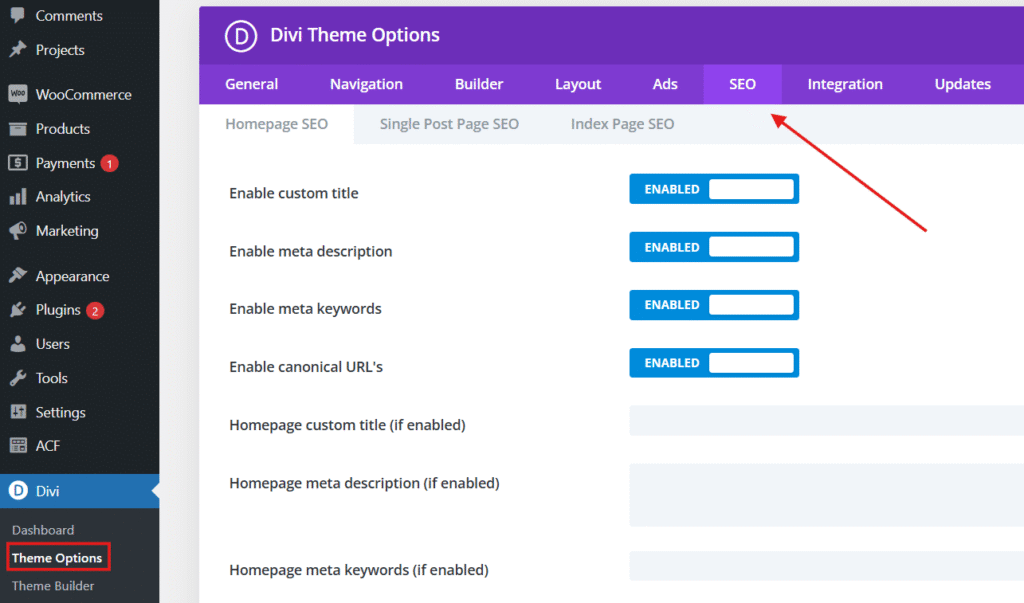
In your WordPress dashboard, go to Divi in the left sidebar and click Theme Options. In the Theme Options panel, click the SEO tab in the top navigation row.
The SEO Tab has three sub-tabs:
- Homepage SEO — controls meta tags for your website’s front page
- Single Post SEO — controls meta tags for individual blog posts and pages
- Index Page SEO — controls meta tags for archive pages, category pages, and tag pages
Each sub-tab has its own set of toggle switches and text fields. Changes only take effect after you click Save Changes at the bottom of the page.
Homepage SEO Sub-Tab
The Homepage SEO sub-tab controls what search engines see for your website’s front page. This includes the page title, meta description, and meta keywords that appear in search engine results.
EXPERT OPINION Homepage meta tags are among the most visible SEO elements on your entire site. What you set here appears in Google’s search results for your brand name queries, so it is worth getting right. That said, if you are using Rank Math or Yoast SEO, configure your homepage meta tags through those plugins instead. They give you a live SERP preview, character count warnings, and a more reliable implementation than Divi’s built-in fields.
Enable Custom Title
By default, Divi generates your homepage title by combining your site’s name and tagline, both of which are set under Settings > General in WordPress. The result is something like “Site Name | Tagline”.
When you enable the custom title toggle, a text field appears where you can type a fully custom homepage title that overrides the auto-generated version.
Recommended: Enable only if you are not using an SEO plugin. If you are using Rank Math or Yoast SEO, those plugins handle your homepage title through their own settings and you should leave this toggle disabled. Enabling both creates duplicate or conflicting title tags.
TIP A well-written homepage title should be 50 to 60 characters, include your primary keyword, and communicate what your site offers. For a Divi-focused blog, something like “Divi Tutorials, Themes and Resources | wpdivizone” is more useful than just your site name.
Custom Title
This text field only appears when Enable Custom Title is turned on. Type the exact title you want search engines to display for your homepage in search results and browser tabs.
Keep this between 50 and 60 characters. Titles longer than 60 characters get truncated in Google’s search results, which cuts off important words and reduces the click appeal of your listing.
Enable Meta Description
When enabled, a text field appears where you can write a custom meta description specifically for your homepage. The meta description is the short paragraph of text that appears below your page title in search results.
Recommended: Enable only if you are not using an SEO plugin. The meta description does not directly affect search rankings, but it significantly affects click-through rates. A well-written description tells potential visitors exactly what they will find on your site and gives them a reason to click.
If this is left disabled and no SEO plugin is handling it, search engines generate their own description by pulling text from your homepage content. The result is usually not ideal because the auto-generated text is rarely written with conversion in mind.
Homepage Meta Description
This field appears when Enable Meta Description is turned on. Write a description of 150 to 155 characters. Stay within this range. Descriptions shorter than 120 characters leave unused space. Descriptions longer than 155 characters get cut off in search results.
Write the description for the human reader, not for the search engine. Focus on what your homepage offers and why someone should visit. A practical example for a Divi blog: “Divi tutorials, child themes, and layout packs for WordPress users. Practical guides for beginners and experienced Divi designers.”
Enable Meta Keywords
This toggle adds a meta keywords tag to your homepage’s HTML. Meta keywords are a comma-separated list of words and phrases that describe your page’s content.
EXPERT OPINION Meta keywords have been irrelevant for Google rankings since around 2009. Google officially confirmed they do not use them as a ranking signal. Bing and other search engines followed. There is no SEO benefit to filling in this field in 2026. Enable it only if you are using a specialized search tool or intranet system that still reads meta keywords, which is rare. For standard public-facing websites, leave this disabled.
Enable Canonical URLs
A canonical URL tag tells search engines which version of a URL is the definitive one. This is important when the same content is accessible at multiple URLs, for example with and without a trailing slash, or via HTTP and HTTPS.
Recommended: Enable. Canonical URLs prevent duplicate content issues that can dilute your search rankings. When Divi adds the canonical tag, it points search engines to the correct version of each page and avoids confusion when your content is accessed through multiple URL variations.
If you are using Rank Math or Yoast SEO, those plugins handle canonicals automatically and more comprehensively than Divi’s built-in option. In that case, leave this disabled to avoid duplicate canonical tags.
Auto-Generate Meta Title Format
When you are not using a custom title, this setting controls the format Divi uses to auto-generate page titles across your site. You can choose between two formats:
- Site Name | Page Title — site name appears first, page title second
- Page Title | Site Name — page title appears first, site name second
Recommended: Page Title | Site Name. Placing the page title first means the most descriptive part of your title appears before the truncation point if the title is long. Google tends to truncate from the right, so having the specific page topic first ensures it is always visible in search results even when the full title is too long to display.
Meta Title Separator
This sets the character used to separate the site name and page title in auto-generated titles. Common separators are | (pipe), – (hyphen), and : (colon).
Recommended: | (pipe). The pipe character is the most visually clean separator in search results and is widely used by major websites. Avoid using a hyphen as a separator because hyphens are also used within page titles themselves, which can make the title harder to read when the separator and a title word hyphen appear near each other.
Single Post SEO Sub-Tab
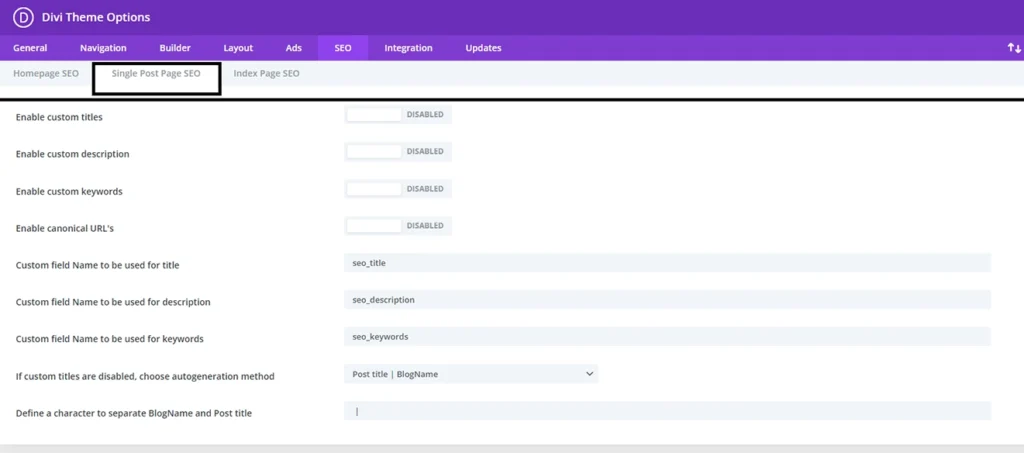
The Single Post SEO sub-tab controls the meta tag behavior for individual blog posts and standard pages on your site. The settings here are structurally identical to the Homepage SEO sub-tab but apply to individual content items instead of just the homepage.
Enable Custom Titles
When enabled, this allows custom titles to be set on a per-post and per-page basis. You set individual post titles using a custom field that appears in the WordPress post editor when this option is active.
Recommended: Disable if using an SEO plugin. Rank Math and Yoast SEO both provide their own title fields for each post and page, which are more visible, easier to use, and come with character count indicators. Using both Divi’s custom title system and an SEO plugin’s title field on the same post creates a conflict where one overrides the other, and the results can be unpredictable.If you want a detailed guide on optimizing individual posts with Rank Math, see our article on How to Optimize Your Divi Website with Rank Math.
Enable Meta Descriptions for Posts
When enabled, a meta description field becomes available for each individual post and page in the WordPress editor. You fill this in separately for each piece of content.
Recommended: Disable if using an SEO plugin. The same conflict issue applies here as with custom titles. SEO plugins provide their own description fields that are more user-friendly and avoid the duplicate meta tag problem.
If you choose to use Divi’s built-in description field without an SEO plugin, fill in a unique, relevant description for every post you publish. Generic descriptions or leaving them blank forces search engines to auto-generate them from your content, which rarely produces the most compelling result.
Enable Meta Keywords for Posts
Adds a meta keywords field to individual posts and pages.
EXPERT OPINION Same recommendation as the homepage meta keywords setting: leave this disabled. Google ignores meta keywords entirely. Spending time filling in keywords for every post is wasted effort that produces no ranking benefit. Use that time to improve your content, internal linking, or page load speed instead. Those factors actually affect search performance.
Enable Canonical URLs for Posts
Adds canonical URL tags to individual posts and pages, pointing search engines to the correct preferred URL for each piece of content.
Recommended: Enable if you are not using an SEO plugin. Canonical tags on individual posts prevent duplicate content issues that can occur when the same post is accessible through multiple URLs, such as a direct URL and a category archive URL at the same time.
TIP If you syndicate your content to Medium, LinkedIn Articles, or other platforms, a canonical tag pointing back to your original post tells search engines that your site is the primary source. This protects your content from being outranked by the syndicated version.
Title Format for Single Posts
Controls the auto-generated title format for individual posts when custom titles are not set. The same Site Name | Page Title vs Page Title | Site Name choice applies here as in the homepage settings.
Keep this consistent with your homepage title format setting. Mixed formats across your site create an inconsistent appearance in search results that looks unprofessional.
Index Page SEO Sub-Tab
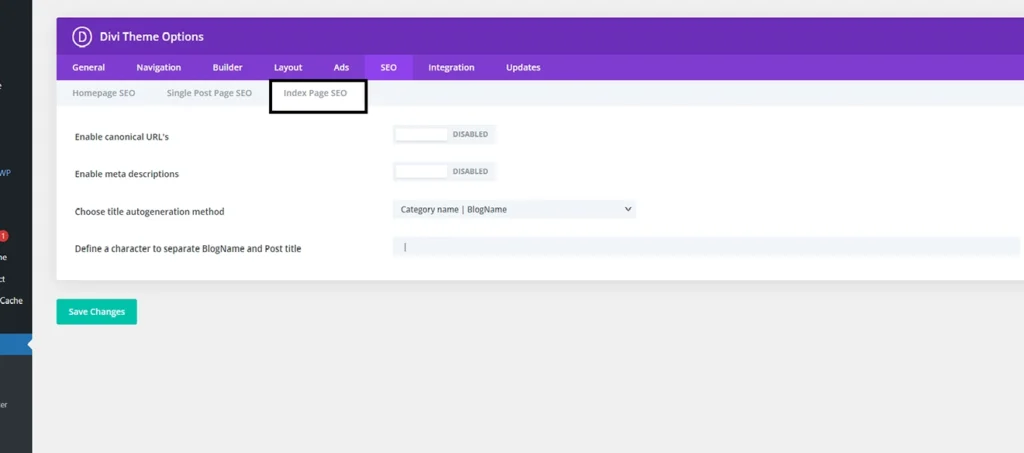
The Index Page SEO sub-tab controls meta tags for archive pages, which includes category archives, tag archives, author archives, and date-based archives. These are the pages WordPress generates automatically to list posts grouped by category, tag, author, or date.
Enable Canonical URLs for Index Pages
Adds canonical tags to archive pages to prevent duplicate content issues across paginated archives. For example, page 1 and page 2 of a category archive are technically different URLs showing different subsets of the same content. Canonical tags help search engines understand the relationship between these pages.
Recommended: Enable. Archive page duplication is a real technical SEO issue, especially for sites with large amounts of content across many categories. Enabling this setting is a quick and effective way to handle it.
Enable Meta Descriptions for Index Pages
Adds meta description support for archive pages. When enabled, a description field becomes available for each category, tag, and other archive type.
Recommended: Enable for category archives if you are not using an SEO plugin. Category pages are some of the highest-value archive pages on a content site. A well-written category description tells search engines and visitors what kind of content they will find in that category, which improves both rankings for category-level keywords and the click-through rate from search results.
You add category descriptions from Posts > Categories in your WordPress dashboard. Click on any category, fill in the Description field, and save. That description becomes the meta description for that category’s archive page.
Auto-Generate Description Method for Index Pages
When individual archive descriptions are not set, this controls how Divi generates a fallback description for archive pages. Options are typically based on the first posts in the archive or a combination of the archive title and site description.
Recommended: Set this and also write manual descriptions for your main category pages. Auto-generated descriptions are a fallback, not a substitute. Your most important category pages, the ones that represent your main content topics, deserve a hand-written description that accurately describes what visitors will find there.
Divi SEO Tab vs Rank Math: Which Should You Use?
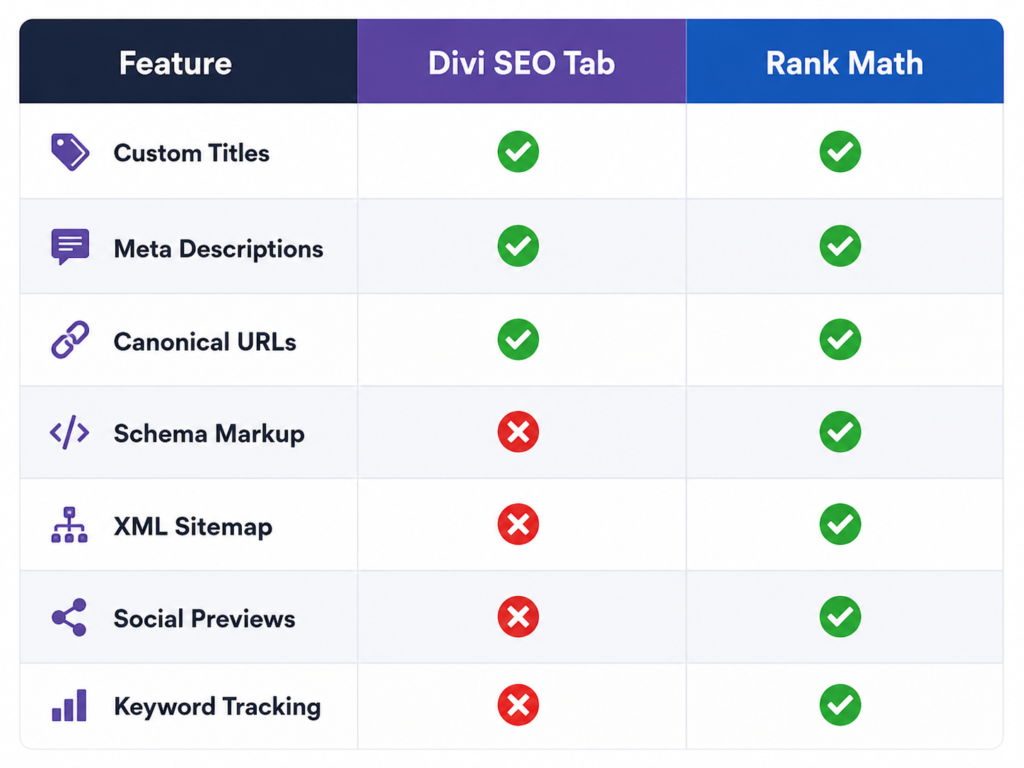
This is the most important decision to make before touching any settings in the Divi SEO Tab. Using both Divi’s built-in SEO settings and a dedicated SEO plugin simultaneously creates conflicts that result in duplicate meta tags, competing canonical URLs, and inconsistent title formats.
Here is the practical breakdown of each scenario.
If You Are Using Rank Math or Yoast SEO
Disable all custom title, meta description, and meta keywords settings in the Divi SEO Tab. Leave canonical URLs enabled in Divi only if your SEO plugin does not handle them, which is uncommon since both Rank Math and Yoast manage canonicals by default.
Configure everything through your SEO plugin instead. Rank Math and Yoast provide per-post title and description fields directly in the post editor, global title format settings, and canonical management. They also offer features that Divi’s built-in SEO tab does not, such as schema markup, XML sitemaps, social media preview settings, and keyword focus tracking.
EXPERT OPINION Rank Math is the recommended SEO plugin for Divi websites. It is free for the features most sites need, has no history of performance conflicts with Divi, and integrates directly into the Divi Visual Builder so you can check your SEO score without leaving the page editor. If you are starting a new Divi site in 2026, install Rank Math, configure it once, and ignore the Divi SEO Tab almost entirely.
If You Are Not Using an SEO Plugin
In that case, the Divi SEO Tab is useful and worth configuring. Enable custom titles for the homepage, write a homepage meta description, enable canonical URLs across all three sub-tabs, and set your preferred title format and separator. Skip meta keywords entirely regardless of this choice.
Be aware that Divi’s built-in SEO features are basic compared to a dedicated plugin. You get title and description control, but no schema markup, no XML sitemap generation, no social preview customization, and no per-post keyword analysis. These are meaningful gaps for any content site trying to rank competitively.
For a complete look at how to set up Rank Math with Divi, see our guide How to Optimize Your Divi Website with Rank Math, which covers the full configuration process from installation to per-post optimization.
Recommended SEO Tab Configuration
The right configuration depends entirely on whether you are using an SEO plugin. Here are the two recommended setups.
If You Are Using Rank Math or Yoast SEO
- Homepage SEO: Disable Enable Custom Title, Disable Enable Meta Description, Disable Enable Meta Keywords, Enable Canonical URLs
- Single Post SEO: Disable Enable Custom Titles, Disable Enable Meta Descriptions, Disable Enable Meta Keywords, Enable Canonical URLs
- Index Page SEO: Enable Canonical URLs, Disable Enable Meta Descriptions (let the SEO plugin handle these)
- Set your preferred title format and separator in case the SEO plugin falls back to Divi’s format
- Click Save Changes
If You Are Not Using an SEO Plugin
- Homepage SEO: Enable Custom Title and write a 50 to 60 character title, Enable Meta Description and write a 150 to 155 character description, Disable Meta Keywords, Enable Canonical URLs
- Single Post SEO: Enable Custom Titles, Enable Meta Descriptions, Disable Meta Keywords, Enable Canonical URLs
- Index Page SEO: Enable Canonical URLs, Enable Meta Descriptions for main categories
- Set title format to Page Title | Site Name
- Set separator to | (pipe)
- Click Save Changes
NOTE If you start without an SEO plugin and later install one, go back to the Divi SEO Tab and disable all the settings you had enabled. Leaving Divi’s SEO settings active alongside a plugin will create duplicate meta tags that can confuse search engines.
Common SEO Tab Mistakes and How to Avoid Them
Running Both Divi SEO Settings and an SEO Plugin Simultaneously
This is the most common mistake. When both are active, your pages end up with two title tags and two meta description tags in the HTML. Search engines pick one, but the result is unpredictable. Always choose one system and stick to it.
Filling In Meta Keywords
No modern search engine uses meta keywords as a ranking signal. Filling in this field for every post is time you could spend improving your content, building internal links, or improving page speed. None of those activities waste your time the way meta keywords do.
Leaving Meta Descriptions Blank
When no meta description is provided, Google writes its own by pulling text from the page. The auto-generated text is usually factually accurate but rarely written in a way that encourages clicks. A well-written meta description for every post can meaningfully improve your click-through rate from search results, which in turn signals to Google that your content is relevant and worth ranking higher.
Ignoring Archive Page Canonical URLs
Paginated archive pages are a subtle but real source of duplicate content on content-heavy sites. Page 1 and page 2 of a category archive contain different posts but are algorithmically similar pages. Enabling canonical URLs for index pages in the Divi SEO Tab is a simple setting that addresses this without any additional configuration.
Frequently Asked Questions
Should I use the Divi SEO Tab if I already have Rank Math installed?
No, not for the main title and description settings. Disable those in the Divi SEO Tab and manage everything through Rank Math. The one exception is the canonical URL settings, which you can leave enabled in Divi if you want a belt-and-suspenders approach, though Rank Math handles canonicals on its own. The most important thing is to avoid having both systems write titles and descriptions simultaneously.
Can I use the Divi SEO Tab for homepage settings and Rank Math for everything else?
Technically yes, but this split configuration is difficult to manage and easy to get wrong. If you install an SEO plugin, configure everything through that plugin. Most SEO plugins including Rank Math have specific homepage settings just like Divi does. Use the plugin’s homepage settings instead of Divi’s.
What happens if I leave all SEO Tab settings disabled?
WordPress and Divi will auto-generate basic meta titles using your site name and page titles. No meta descriptions will appear unless your SEO plugin adds them. Canonical URLs will not be present unless your SEO plugin or another mechanism adds them. For a basic new website, this is functional but not optimal. Installing and configuring an SEO plugin from day one is the better approach.
Does enabling canonical URLs in Divi conflict with Rank Math’s canonical handling?
Having two canonical tags pointing to the same URL is generally harmless but technically redundant. Having two canonical tags pointing to different URLs is a problem. To keep things clean, if you are using Rank Math disable the canonical URL settings in the Divi SEO Tab and let Rank Math handle all canonical tags.
Where do I write meta descriptions for individual posts if I am using the Divi SEO Tab without a plugin?
With the Enable Meta Descriptions setting turned on in the Single Post SEO sub-tab, a custom meta description field appears in the post editor when editing individual posts and pages. In WordPress, scroll down on the post edit screen to find the Divi SEO fields below the content editor. Fill in the description there for each post.
Does the Divi SEO Tab handle Open Graph tags for social media sharing?
No. Divi’s built-in SEO Tab does not generate Open Graph tags, which control how your pages appear when shared on Facebook, LinkedIn, or Twitter. For Open Graph support, you need an SEO plugin like Rank Math or Yoast SEO. Both handle Open Graph tags automatically once configured.
Will configuring the Divi SEO Tab improve my search rankings?
Meta tags alone do not directly improve rankings. Google uses hundreds of signals to rank pages, and meta titles and descriptions are not primary ranking factors. What they do affect is your click-through rate from search results, which is indirectly related to rankings. A well-written meta description gets more clicks. More clicks signal to Google that your content satisfies search intent, which can gradually improve your position.
Final Thoughts
The Divi SEO Tab is a useful fallback for websites that do not use a dedicated SEO plugin. It covers the basics: custom titles, meta descriptions, and canonical URLs for your homepage, individual posts, and archive pages. For simple sites in their early stages, that is enough to get properly indexed by search engines.
For any serious content website, including a Divi affiliate blog, the Divi SEO Tab is not sufficient on its own. Install Rank Math, disable the conflicting settings in the Divi SEO Tab, and let the plugin handle your SEO configuration from that point forward. You will get more control, better tools, and none of the duplicate meta tag conflicts that come from running both systems at once.The next step after SEO configuration is making sure your site loads fast.