Most people set up their WordPress menu once and never revisit the Navigation Tab in Divi Theme Options. That is a mistake, because this tab controls more than just which pages appear in your menu.
The Navigation Tab in Divi gives you granular control over how WordPress auto-generates your site’s navigation, what gets included or excluded, how dropdown menus behave, and how categories are ordered and displayed. If your menu is showing pages you do not want, or missing items you need, the answer is usually found here. Before diving in, if you have not yet set up your Divi website, read our complete guide on Divi Theme Setup: How to Buy, Install and Configure It first.
The Navigation Tab has three sub-tabs: Pages, Categories, and General Settings. This guide covers all three in full detail, with recommended configurations for each setting.
How to Access the Navigation Tab
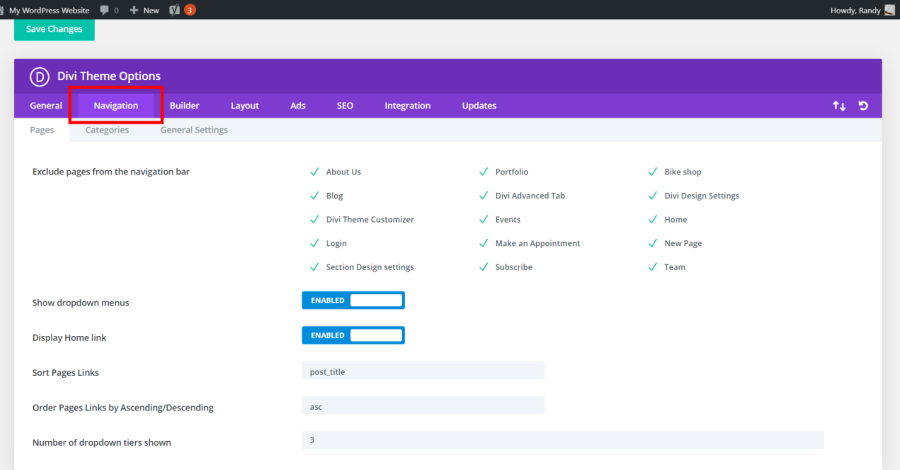
In your WordPress dashboard, go to Divi in the left sidebar and click Theme Options. When the Theme Options panel opens, click the Navigation tab in the top row of tabs. You will see three sub-tabs below: Pages, Categories, and General Settings.The Navigation Tab controls how Divi handles your site’s menus when you have not created custom menus through WordPress. If you have already built a custom menu via Appearance > Menus in WordPress, many of these settings will have no visible effect because your custom menu takes priority over the auto-generated one.
NOTE If you use the Divi Theme Builder to create a custom header with a Divi Menu Module, the Navigation Tab settings apply to that menu’s behavior as well. Settings like dropdown visibility and excluded pages still apply.
Pages Sub-Tab
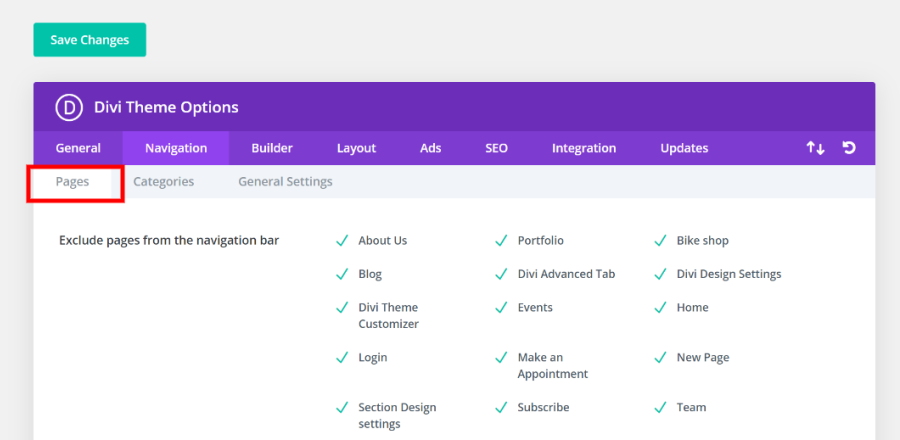
The Pages sub-tab controls which pages appear in your navigation menu and how they behave. All settings here apply to the auto-generated WordPress menu based on your published pages.
Exclude Pages
This field lets you enter the IDs of specific pages you want to exclude from the navigation menu. Pages you list here will not appear in the auto-generated menu even if they are published on your site.
To find a page’s ID, go to Pages in your WordPress dashboard and hover over the page title. The URL shown at the bottom of your browser will contain a number after `?post=`. That number is the page ID.
Enter page IDs separated by commas. For example, entering `12, 45, 89` excludes those three pages from the navigation.
TIP This setting only affects the auto-generated menu. If you are using a manually built custom menu via Appearance > Menus, you control which pages appear by adding or removing them directly from that menu. The Exclude Pages field here will not affect a custom menu.
Show Dropdown Menus
When this setting is enabled, child pages appear as dropdown items nested under their parent page in the navigation menu. When disabled, all pages appear as flat top-level menu items regardless of their parent-child relationship in WordPress.
Recommended: Enable. If your site has more than five or six pages, dropdown menus keep the navigation clean by grouping related pages under a parent item. Visitors can hover over a parent page to see its sub-pages without the top-level navigation becoming cluttered.
Disable this only if your site has a very small number of pages and you want them all visible at the same level, or if your design uses a mega menu or custom navigation structure that handles dropdowns differently.
Show Page on Menu in List
This setting controls whether a page set as the front page of your site appears in the auto-generated navigation menu. If your site has a static front page, you can choose whether that page shows up as a menu item.
Recommended: Disable if your logo already links to the home page. Most Divi sites have the logo link back to the homepage, which makes a separate Home link in the navigation redundant. Disabling this removes the duplicate and keeps the menu cleaner.
Enable it if your navigation design requires a visible Home link alongside the logo, which is common on some corporate or government website layouts.
Show Home Page Link
Separate from the front page setting above, this option adds a dedicated Home link as the first item in the auto-generated menu. This is different from showing the front page itself in the menu.
Recommended: Disable for most sites. When your logo links to the homepage and visitors understand that convention, a separate Home link wastes menu space. Enable it on websites serving audiences who may be less familiar with standard web navigation patterns.
Show Page Titles
Controls whether the title of each page is displayed as the text label in the navigation menu. When enabled, pages use their WordPress page title as the menu label. When disabled, the page title is hidden from the menu.
Recommended: Enable. Disabling this would remove the text labels from your navigation, which would make the menu unusable for most sites. This setting is rarely changed from its default enabled state.
Sort Pages By
Determines the order in which pages appear in the auto-generated menu. The available sort options are:
- Page Title — alphabetical order by page title
- Page Order — the custom order set in each page’s attributes
- Page ID — sorted by the numeric ID assigned when each page was created, which roughly corresponds to creation order
- Page Author — grouped by the WordPress user who created the page
- Page Date — sorted by the date each page was published
- Page Modified — sorted by the most recently edited pages
- Menu Order — uses the Order value set in each page’s Page Attributes section
Recommended: Menu Order or Page Title. Menu Order gives you full manual control over the sequence of pages in your navigation, which is the most predictable and intentional approach. Set the order value on each page under Page Attributes > Order in the WordPress page editor. Page Title works well if you want alphabetical navigation on sites with many peer-level pages.
Limit Level Dropdown
This setting controls how many levels of nested dropdown menus are displayed. For example, a value of 1 shows only the first level of child pages as dropdowns. A value of 2 shows child pages and their sub-child pages. Setting it higher allows deeper nesting.
Recommended: 1 or 2 levels maximum. Deep dropdown menus with three or more levels create poor usability on both desktop and mobile. Visitors struggle to navigate through multiple nested levels, especially on touch screens where hover effects do not work the same way as on desktop.
Categories Sub-Tab
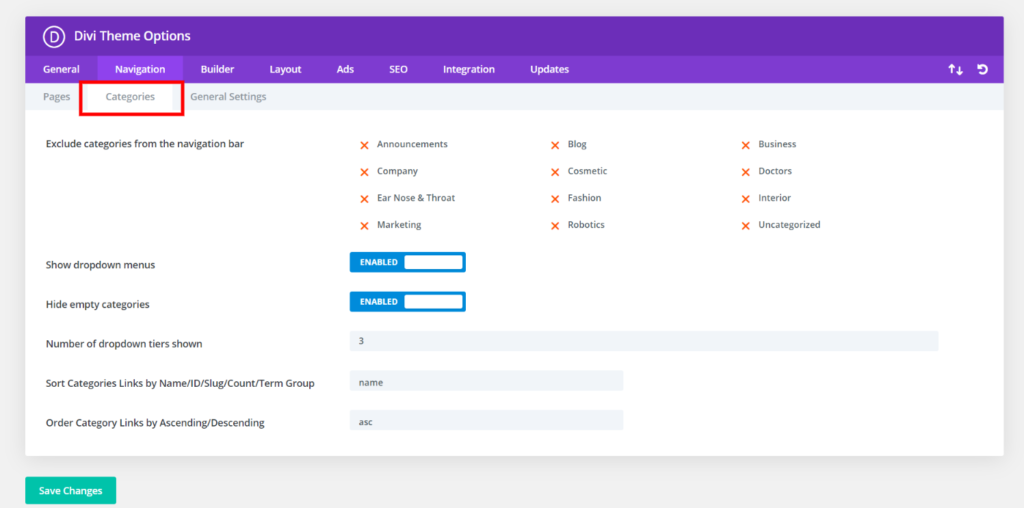
The Categories sub-tab controls how WordPress blog categories behave in your navigation menu. These settings apply when Divi auto-generates a menu that includes your blog’s category structure.
Exclude Categories
Works the same way as the page exclusion setting but for blog categories. Enter the IDs of categories you want to hide from the auto-generated navigation menu, separated by commas.
To find a category ID, go to Posts > Categories in your WordPress dashboard. Hover over the category you want to exclude and look at the URL that appears at the bottom of your browser. The number after `tag_ID=` is the category ID.
TIP If you use blog categories for internal organization but do not want them all visible to site visitors in the navigation, this exclusion field is the right tool. Common examples include excluding draft or archive categories that exist for editorial purposes only.
Show Empty Categories
When enabled, categories that have no published posts assigned to them still appear in the auto-generated navigation. When disabled, empty categories are hidden from the menu automatically.
Recommended: Disable. Showing empty categories creates menu items that lead to pages with no content, which is a poor experience for visitors. Disable this and your navigation will only show categories that actually have posts for visitors to read.
Order Categories By
Controls the sort order of categories in the navigation. Options include ordering by name, ID, count, slug, term group, or parent.
- Name — alphabetical by category name
- ID — by the order categories were created
- Count — most-posted-to categories first
- Slug — alphabetical by URL slug
Recommended: Name. Alphabetical ordering makes categories easy for visitors to scan. Count-based ordering can work if you want to promote your most active categories, but it changes dynamically as you publish new posts, which can shift your navigation unexpectedly.
Sort Order
Sets whether categories are sorted in ascending (A to Z, lowest to highest) or descending (Z to A, highest to lowest) order based on the Order By setting above.
Recommended: Ascending. This creates the most natural reading order regardless of which sort method you choose.
General Settings Sub-Tab
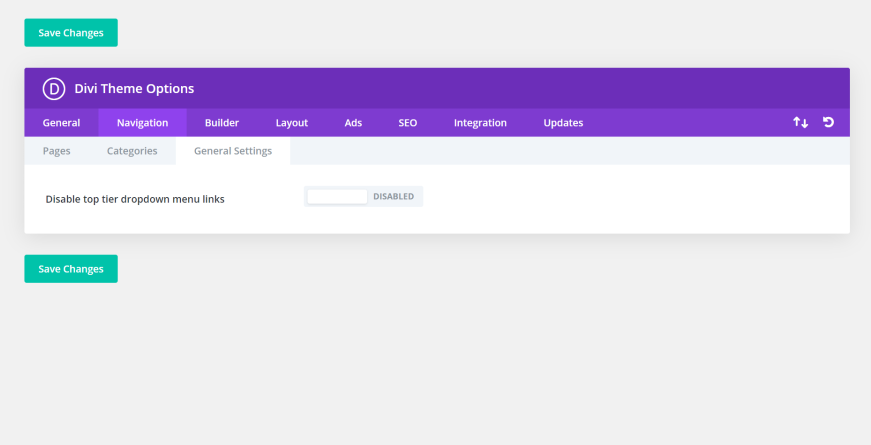
The General Settings sub-tab contains a single but important setting that affects how your top-level dropdown menu links behave.
Disable Top Tier Dropdown Menu Links
When this setting is enabled, top-level menu items that have dropdown children become non-clickable. Visitors can hover over them to reveal the dropdown, but clicking the parent item does not navigate to that page.
When to enable this: Some websites use top-level menu items purely as category labels to organize their dropdown items. For example, a Services menu item might exist only to house service-specific sub-pages. In this case, the Services page itself may not exist or may be intentionally unreachable, and enabling this setting prevents visitors from landing on a 404 or empty page.
When to disable this: Most websites want their top-level menu items to be clickable links. If you have a Services page that also has sub-service pages, visitors should be able to click Services to reach the overview page and also hover to access individual service pages. Keep this disabled in that case.
Recommended: Disable for most sites. Disabling top-level links is a deliberate design decision that only makes sense when your top-level items are structural labels rather than actual pages. If in doubt, leave it disabled.
Navigation Tab vs Custom WordPress Menus
Understanding when the Navigation Tab settings apply versus when they are overridden by a custom menu is one of the most common sources of confusion for new Divi users.
Divi’s Navigation Tab settings control the auto-generated menu, which WordPress builds automatically from your published pages and categories. The moment you create a custom menu in Appearance > Menus and assign it to the Primary Menu location, WordPress uses that custom menu instead of the auto-generated one.
Settings like Exclude Pages, Show Dropdown Menus, and Sort Pages By only affect the auto-generated menu. If you have a custom menu assigned, those settings are effectively inactive for your visible navigation.
The one exception is the Disable Top Tier Dropdown Menu Links setting in the General Settings sub-tab. This applies to both auto-generated and custom menus.
TIP If you are building a professional Divi website, always create a custom menu in Appearance > Menus. Custom menus give you full control over which items appear, in what order, with what labels, and with what link destinations. The auto-generated menu that the Navigation Tab controls is a fallback for simple sites that have not yet created a custom menu.
Navigation Tab and the Divi Theme Builder
If you use the Divi Theme Builder to design a custom header with a Divi Menu Module, most of your navigation behavior is controlled inside the Theme Builder rather than in Theme Options. The Menu Module inside the Theme Builder has its own settings for menu selection, dropdown behavior, mobile menu style, and animation effects. However, the Navigation Tab still plays a role. The pages and categories that appear in your menu are still filtered by the exclusion settings in the Navigation Tab, and the Disable Top Tier Dropdown Menu Links setting from the General Settings sub-tab still applies. To learn more about how the Divi Builder works, see our guide on Getting Started with Divi Builder (Step-by-Step)
Recommended Navigation Tab Configuration for New Divi Sites
If you are setting up Divi for the first time, here is the recommended starting configuration for each sub-tab.
Pages Sub-Tab
- Exclude Pages — Leave blank initially. Add page IDs later for any pages you want hidden from navigation, such as thank-you pages or landing pages.
- Show Dropdown Menus — Enable
- Show Page on Menu in List — Disable if your logo links to homepage
- Show Home Page Link — Disable
- Show Page Titles — Enable
- Sort Pages By — Menu Order
- Limit Level Dropdown — 1 or 2
Categories Sub-Tab
- Exclude Categories — Leave blank unless you have categories you want hidden
- Show Empty Categories — Disable
- Order Categories By — Name
- Sort Order — Ascending
General Settings Sub-Tab
- Disable Top Tier Dropdown Menu Links — Disable
After saving these settings, set up your custom menu through Appearance > Menus if you have not already. A custom menu gives you more control than any of these settings can provide on their own.
For a full overview of all Divi Theme Options tabs and what each one controls, see our guide on Divi Theme Options: General Tab Settings Explained, which covers the most settings-heavy tab in detail.
Common Navigation Issues and Where to Fix Them
Several navigation problems that Divi users run into are directly related to Theme Options settings rather than menu configuration errors.
Pages Are Appearing in the Menu That You Did Not Add
This happens when you do not have a custom menu assigned. WordPress falls back to the auto-generated menu, which includes all published pages. Fix this by either creating a custom menu in Appearance > Menus and assigning it to the Primary Menu location, or by using the Exclude Pages field in the Navigation Tab to remove specific pages from the auto-generated menu.
Dropdown Menus Are Not Showing
If child pages are not appearing as dropdown items under their parent page, first check that Show Dropdown Menus is enabled in the Pages sub-tab. If you are using a custom menu, also check that your child pages are nested correctly inside the custom menu structure in Appearance > Menus. The parent-child relationship in your page attributes does not automatically create dropdown nesting in a custom menu; you need to drag and drop child items under parent items in the menu editor.
Top-Level Menu Items Are Not Clickable
If clicking a top-level menu item does nothing, check the Disable Top Tier Dropdown Menu Links setting in the General Settings sub-tab. If it is enabled, top-level items with dropdown children become hover-only. Disable that setting to restore click behavior.
Empty Categories Are Showing in Navigation
Go to the Categories sub-tab and disable Show Empty Categories. Save your changes and clear your site’s cache if you have a caching plugin active.
Frequently Asked Questions
Does the Navigation Tab control the mobile menu as well?
The Navigation Tab settings affect the menu data (which pages and categories appear, their order, dropdown behavior) for both desktop and mobile. However, the visual style and layout of your mobile menu is controlled separately through the Divi Theme Customizer under Header and Navigation, or inside the Theme Builder if you have built a custom header.
I created a custom menu in Appearance > Menus. Do the Navigation Tab settings still apply?
Most of them do not. Once a custom menu is assigned to the Primary Menu location, WordPress uses that menu instead of the auto-generated one. The Exclude Pages and Sort Pages settings no longer affect your visible navigation. The only Navigation Tab setting that still applies to custom menus is Disable Top Tier Dropdown Menu Links in the General Settings sub-tab.
How do I find the page ID to exclude a page from navigation?
In your WordPress dashboard, go to Pages and hover over the page title without clicking it. Look at the URL that appears in the bottom-left corner of your browser window. The number after post= in that URL is the page ID. You can also find the ID by opening the page for editing and looking at the URL in your browser’s address bar.
Can I exclude a page from the menu without deleting it or making it private?
Yes. The Exclude Pages field in the Navigation Tab lets you hide specific pages from the auto-generated menu without changing their visibility or status. The pages remain published and accessible via direct URL. Visitors just will not see them in the navigation. This is useful for landing pages, thank-you pages, and other pages you drive traffic to through links rather than navigation.
What is the difference between Sort Pages By and Sort Order?
Sort Pages By determines the attribute used as the basis for sorting, such as page title, creation date, or menu order. Sort Order determines the direction of that sort: ascending (A to Z, oldest to newest, smallest to largest) or descending (Z to A, newest to oldest, largest to smallest). They work together. For example, Sort Pages By: Name combined with Sort Order: Ascending produces alphabetical order from A to Z.
My navigation has too many levels of dropdowns. How do I limit them?
Use the Limit Level Dropdown setting in the Pages sub-tab. Set it to 1 to show only one level of dropdown, or 2 for two levels. For most websites, one or two levels of dropdown navigation is the maximum recommended depth for good usability.
Does the Navigation Tab work with Divi 5?
Yes. The Navigation Tab in Divi Theme Options works the same way in Divi 5 as in previous versions. The settings and sub-tabs described in this guide apply to both Divi 4 and Divi 5. In Divi 5, you also have additional menu-building options available directly inside the Visual Builder through the new Divi Menu Module.
Final Thoughts
The Navigation Tab is one of the shorter sections in Divi Theme Options, but it handles some genuinely important behavior around how your site’s menu is generated and displayed. If you are using a custom WordPress menu, most of these settings run in the background without affecting your visible navigation. If you are relying on Divi’s auto-generated menu, these settings give you meaningful control over what appears and how it is organized.
The most impactful recommendation is to set up a custom menu through Appearance > Menus as soon as your site has more than a few pages. Custom menus give you complete control that no Theme Options setting can match. Use the Navigation Tab to fine-tune the behavior after your custom menu is in place.
If you are working through your Divi setup from the beginning, the next tab to configure after Navigation is the Builder Tab. See our full breakdown in Divi Theme Options: Builder Tab Explained