The Divi Theme Options panel has several tabs, and most users spend the majority of their time in the General Tab. The Builder Tab, however, is one that often gets skipped. It is short, contains only a handful of settings, but every one of those settings has a direct impact on how the Divi Builder works across your entire website.
This guide explains every setting in the Divi Theme Options Builder Tab, what each option does, when you should change it, and what the recommended configuration looks like for most websites.
The Builder Tab has two sub-tabs: Post Type Integration and Advanced. Both are covered here in full detail.
New to Divi Theme Options? Start here: Divi Theme Options: General Tab Settings Explained
How to Find the Builder Tab in Divi Theme Options
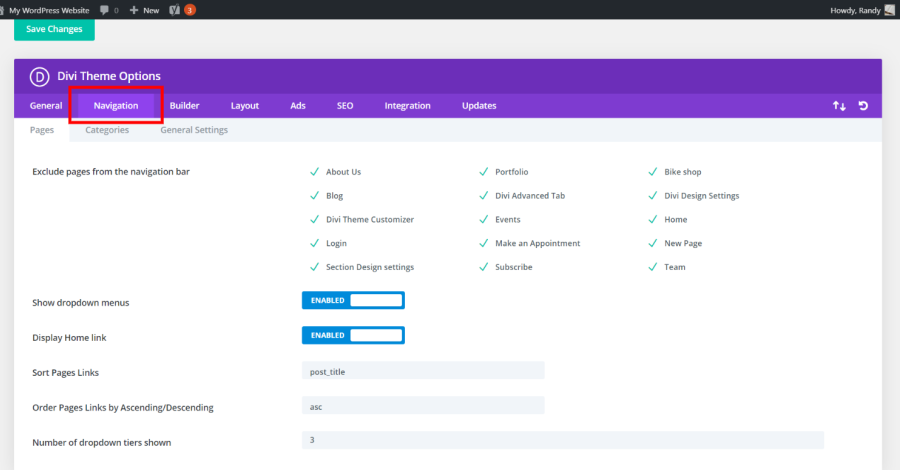
In your WordPress dashboard, go to Divi in the left sidebar and click Theme Options. When the Theme Options panel opens, you will see a row of tabs at the top. Click Builder to open the Builder Tab.
You will see two sub-tabs just below: Post Type Integration and Advanced. Post Type Integration is selected by default.
Post Type Integration Sub-Tab
The Post Type Integration sub-tab controls which content types on your WordPress site can use the Divi Builder. By default, Divi enables the builder on standard Posts and Pages. This sub-tab lets you extend or restrict that.
Enable Divi Builder on Post Types
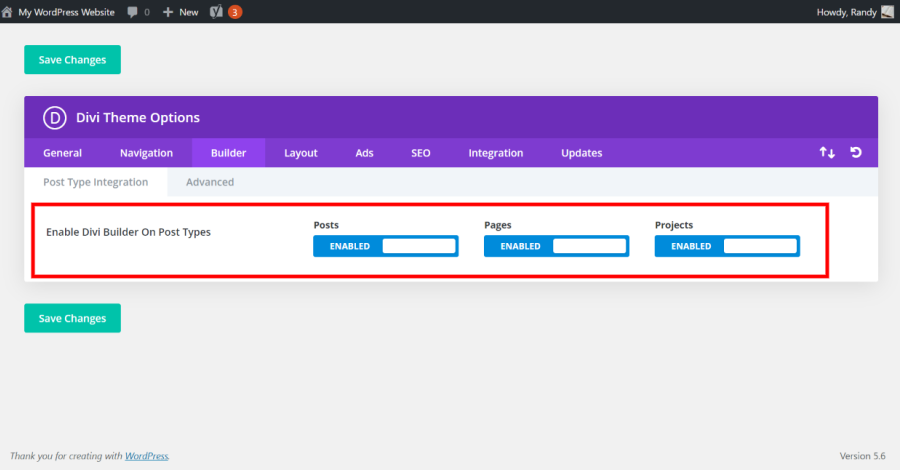
This setting shows a list of all available post types on your WordPress installation. Each one has a toggle or checkbox that enables or disables the Divi Builder for that content type.
By default, the Divi Builder is enabled on:
- Posts — standard WordPress blog posts
- Pages — standard WordPress pages
- Projects — Divi’s built-in portfolio post type
If you have installed plugins that create custom post types, such as a plugin for events, team members, testimonials, or services, those post types will also appear in this list. You can enable the Divi Builder for any of them by checking the corresponding option.
TIP If you are running a WooCommerce store, the Products post type appears here. Enabling Divi Builder on Products lets you design individual product pages visually using the Divi Builder instead of the default WooCommerce product template.
Product Layout
This setting only appears if WooCommerce is active on your site. It controls how the product page layout is structured when you build product pages with Divi.
You have two options:
- Default — Uses the standard WooCommerce product page layout as the base structure, with the Divi Builder handling the content area.
- Divi Builder — Gives you full control over the entire product page layout using the Divi Builder, replacing the WooCommerce default template entirely.
For most users building a custom store experience, the Divi Builder option gives you more design flexibility. The Default option is better if you want to keep WooCommerce’s standard product page structure and only customize the content area.
Product Content
Also a WooCommerce-specific setting. This controls what appears inside the product content area when using Divi Builder on product pages. You can choose between showing the standard WooCommerce product description or the full Divi Builder content.
NOTE Both Product Layout and Product Content only appear in Theme Options when WooCommerce is installed and active. If you do not use WooCommerce, you will not see these settings.
Advanced Sub-Tab
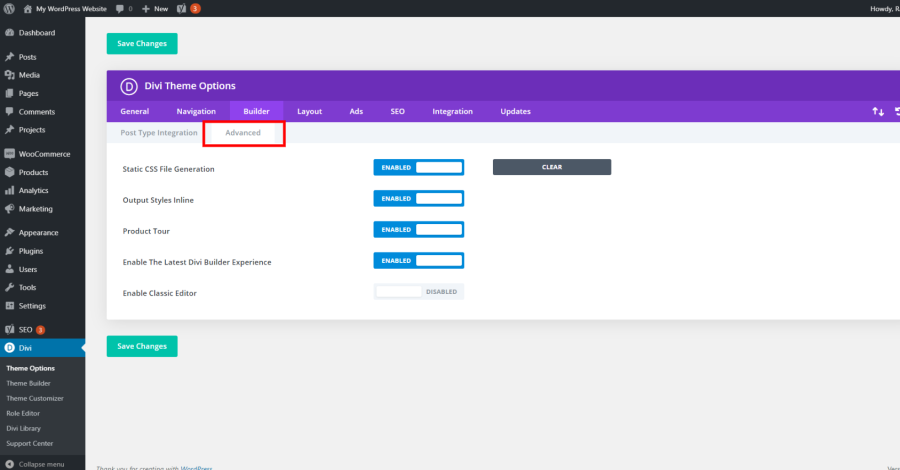
The Advanced sub-tab contains settings that control how the Divi Builder outputs its code, how the builder interface behaves, and compatibility options for older Divi setups. These settings are more technical but are worth understanding, especially if you are troubleshooting performance or compatibility issues.
Static CSS File Generation
When this setting is enabled, Divi generates your page’s CSS as a static file and saves it to your server. On subsequent page loads, the browser retrieves this cached CSS file instead of generating it fresh on each request.
Recommended: Enable. Static CSS files load faster than dynamically generated CSS because the server does not need to process and generate the stylesheet on every page visit. This is one of the most impactful performance improvements available in Divi.
One important note: any time you make design changes in the Divi Builder, you need to clear the Divi CSS cache so the new static files are regenerated. You can do this from Divi > Theme Options > Builder > Advanced by clicking the Clear Cache button that appears when this setting is active.
TIP After enabling Static CSS File Generation, always click Save Changes followed by Clear Cache. If you update a page’s design but the changes do not appear on the live site, clearing the Divi cache is almost always the fix.
Output Styles Inline
When this option is enabled, Divi outputs your page’s CSS styles inline in the HTML rather than in a separate stylesheet file.
Recommended: Disable for most sites. Inline CSS means the styles are embedded directly into the HTML of each page. While this can occasionally improve First Contentful Paint on very small sites, it generally increases HTML file size and prevents the browser from caching the styles across multiple pages.
The exception is when you are experiencing specific issues with external CSS files not loading correctly, or when a caching plugin is causing conflicts with Divi’s external stylesheets. In those cases, enabling this temporarily can help diagnose the issue.
NOTE If you have both Static CSS File Generation and Output Styles Inline enabled at the same time, Output Styles Inline takes priority. Divi will output styles inline rather than using the static files.
Product Tour
This setting controls whether the Divi Builder product tour appears when a user opens the Divi Builder for the first time. The tour is a step-by-step walkthrough of the builder interface designed to help new users get oriented.
Recommended: Enable for new users, disable once you are familiar with Divi. If you are building sites for clients or have team members who are new to Divi, keeping the product tour enabled gives them a guided introduction to the builder without needing to train them manually.
If you have been using Divi for a while and find the tour appearing repeatedly, disable it here to prevent it from showing on future builder sessions.
Enable the Latest Divi Builder Experience
This setting determines which version of the Divi Builder interface your site uses. When enabled, it loads the most current version of the Divi Builder with all the latest features and interface improvements.
Recommended: Enable. Unless you have a specific reason to use an older builder version, the latest experience gives you access to the most current Divi features, performance improvements, and interface updates.
The only reason to disable this is if you have older content built with a significantly different version of Divi and are experiencing layout or rendering issues after an update. In that case, disabling this setting can help you maintain compatibility while you transition your content.
Enable the Classic Editor
When this setting is enabled, WordPress replaces the Gutenberg block editor with the older Classic Editor for posts and pages. This setting affects the WordPress editor experience, not the Divi Visual Builder itself.
Recommended: Personal preference. If you prefer writing content in the Divi Visual Builder and find Gutenberg unnecessary, enabling the Classic Editor keeps the editing experience simpler. Many Divi users enable this because they do all their page design in the Divi Builder and have no use for Gutenberg blocks.
If you use Gutenberg blocks alongside Divi, or if you have other plugins that depend on the Gutenberg editor, keep this disabled.
NOTE Enabling the Classic Editor here has the same effect as installing the official WordPress Classic Editor plugin. If you already have that plugin installed, you do not need to enable this setting as well.
Force Enable D4 Shortcode Framework
This setting forces Divi to load the Divi 4 shortcode framework alongside the current builder. It exists specifically for backward compatibility with older third-party plugins and add-ons that were built using Divi 4’s shortcode system.
WARNING: Keep this setting disabled unless you are using third-party Divi plugins that specifically require it. Enabling it unnecessarily loads additional code that can slow your site and create conflicts. If a plugin or developer tells you to enable this setting, do so. Otherwise, leave it off.
Recommended Builder Tab Configuration for Most Websites
If you are setting up a new Divi website or reviewing your current settings, here is the recommended configuration for the Builder Tab.
Post Type Integration Sub-Tab
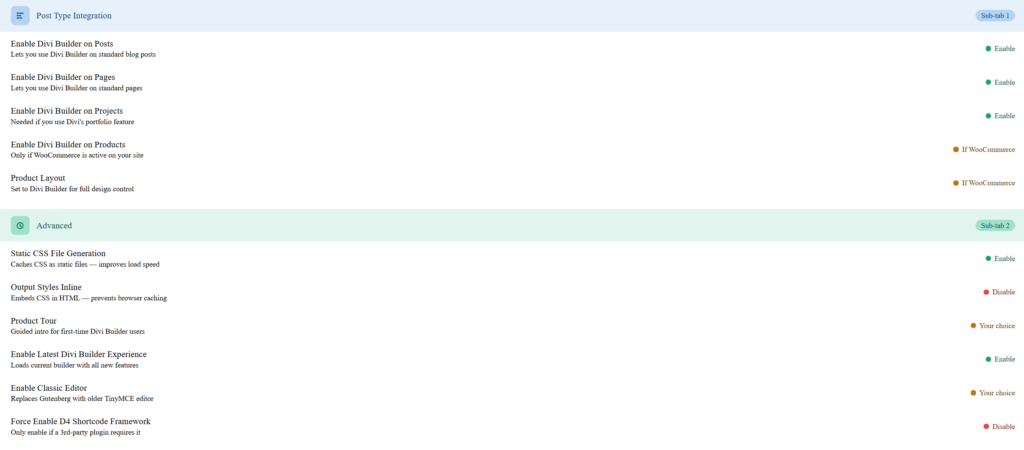
- Enable Divi Builder on Posts — On
- Enable Divi Builder on Pages — On
- Enable Divi Builder on Projects — On (if you use Divi’s portfolio feature)
- Enable Divi Builder on Products — On (only if you use WooCommerce and want to design product pages with Divi)
- Product Layout — Divi Builder (if WooCommerce is active and you want full design control)
Advanced Sub-Tab
- Static CSS File Generation — Enable
- Output Styles Inline — Disable
- Product Tour — Personal preference (disable once familiar with Divi)
- Enable the Latest Divi Builder Experience — Enable
- Enable the Classic Editor — Personal preference
- Force Enable D4 Shortcode Framework — Disable
After saving these settings, click Clear Cache if Static CSS File Generation is enabled. Then visit your site to confirm everything is displaying correctly.
How the Builder Tab Settings Affect Site Performance
Two settings in the Builder Tab directly affect your site’s loading speed: Static CSS File Generation and Output Styles Inline. Understanding how they interact helps you make the right choice for your setup.
Static CSS File Generation is the better option for most sites because it allows browsers to cache the stylesheet. When a visitor loads a second page, their browser retrieves the already-cached CSS file instead of downloading it again. This reduces page load time for repeat visitors and reduces server load.
Output Styles Inline can slightly improve the initial page load perception because the CSS is immediately available in the HTML without a separate network request. However, it prevents caching and increases HTML file size, which tends to hurt performance on multi-page sites where visitors browse several pages in one session.
For most Divi websites, enabling Static CSS File Generation and disabling Output Styles Inline is the correct combination. If your site scores low on Lighthouse or PageSpeed Insights, these two settings are worth verifying as part of your performance audit.
Common Questions About the Builder Tab
What Happens If I Enable the Classic Editor?
Enabling the Classic Editor in Divi Theme Options replaces the Gutenberg block editor with the older TinyMCE-based editor for posts and pages in the WordPress admin. The Divi Visual Builder is not affected. You can still use the Divi Builder to design your pages. The Classic Editor setting only changes what you see when you edit content through the standard WordPress admin editing screen rather than the Divi Builder.
Can I Enable the Divi Builder for Custom Post Types from Plugins?
Yes. If you have a plugin that registers a custom post type, that post type will appear in the Post Type Integration list under the Builder Tab. Check the box or enable the toggle for that post type and the Divi Builder button will appear on those content items in your WordPress admin. This is commonly used for portfolio items, staff profiles, service listings, and custom content created by page builder add-on plugins.
Why Is There a Clear Cache Button in the Builder Tab?
When Static CSS File Generation is enabled, Divi stores your site’s CSS as a static file. If you make design changes in the builder, the existing static file becomes outdated. The Clear Cache button forces Divi to regenerate all static CSS files based on your current design. Always click this after making significant design changes, especially after switching themes, updating Divi, or changing global colors and fonts.
Should I Enable Divi Builder on WooCommerce Products?
This depends on how much control you want over your product page design. Enabling the Divi Builder on Products lets you design product pages with full visual control, adding custom sections, testimonials, comparison tables, or any other Divi module above or below the WooCommerce product information. If you are fine with the default WooCommerce product layout, you do not need to enable it. If you want product pages that look and function differently from WooCommerce’s default template, enable it and set Product Layout to Divi Builder.
Builder Tab vs Other Divi Settings
New Divi users sometimes confuse the Builder Tab in Theme Options with the settings inside the Divi Builder itself. These are two different things.
The Builder Tab in Theme Options controls global behavior: which post types use the builder, how CSS is output, and which editor interface WordPress uses. These are site-wide settings that apply everywhere.
The settings inside the Divi Builder (accessed when editing a specific page) control the design and behavior of individual pages, sections, rows, and modules. Those settings only affect the specific page or element you are editing.
Think of the Builder Tab in Theme Options as the configuration panel for the Divi Builder as a system, while the settings inside the builder itself are the design controls for individual pieces of content.
Learn how to use the Divi Builder on your pages: Getting Started with Divi Builder (Step-by-Step)
Frequently Asked Questions
How many settings does the Divi Builder Tab actually have?
The Builder Tab has two sub-tabs. Post Type Integration contains three to five settings depending on whether WooCommerce is active. The Advanced sub-tab contains six settings. In total, the Builder Tab has fewer than ten settings, but each one has a meaningful impact on how Divi works across your site.
Does enabling Static CSS File Generation in the Builder Tab do the same thing as in the Performance Tab?
There are two places in Divi Theme Options where you will find a Static CSS File Generation setting. The one in the Builder Tab specifically controls the CSS generated by the Divi Builder for your page designs. The Performance sub-tab under the General Tab controls broader CSS optimization settings including Dynamic CSS and Critical CSS. Both should be enabled for best results, and they work together rather than replacing each other.
If I enable the Classic Editor in Divi Theme Options, do I need to also install the Classic Editor plugin?
No. Enabling the Classic Editor setting in Divi Theme Options replaces Gutenberg with the classic TinyMCE editor without requiring the Classic Editor plugin. If you already have the Classic Editor plugin installed, you have duplicate functionality. In that case, you can either keep the plugin or use the Divi setting, but there is no need for both.
I enabled the Divi Builder on a custom post type but the builder button is not appearing. What is wrong?
A few things can cause this. First, confirm you saved your Theme Options settings after enabling the post type. Second, check if the custom post type supports the editor feature in WordPress. Some custom post types registered by plugins explicitly disable the editor, which also prevents the Divi Builder from loading. In those cases, you need to contact the plugin developer or add support for the editor in the post type registration.
What does Force Enable D4 Shortcode Framework do and when do I need it?
This setting loads the Divi 4 shortcode processing framework alongside the current builder. It exists for backward compatibility with third-party Divi plugins or add-ons that were built specifically for Divi 4 and rely on its shortcode system to function. Unless a plugin or its documentation tells you to enable this setting, leave it disabled. Enabling it unnecessarily adds processing overhead and can create conflicts.
Can I use the Divi Builder on every page type including custom archives and taxonomy pages?
The Post Type Integration settings control which individual content items can be edited with the Divi Builder. For archive pages, category pages, and taxonomy pages, you need to use the Divi Theme Builder rather than the standard Divi Builder. The Theme Builder lets you create custom templates for archive layouts, category pages, and other automatically generated page types that are not individual posts or pages.
Final Thoughts
The Divi Builder Tab is one of the shorter sections in Divi Theme Options, but its settings have real consequences for how the builder operates across your entire site. Getting Post Type Integration right from the start saves you from having to enable post types one by one later. Enabling Static CSS File Generation and disabling Output Styles Inline gives you a better performance baseline without any additional configuration.
Work through both sub-tabs when you first set up a new Divi site, confirm the settings match your site’s needs, save, and clear the cache. After that, you will rarely need to revisit the Builder Tab unless you install a new plugin with a custom post type or run into a builder compatibility issue.